Keep the real sticks.
iClapper listens for the physical clapper stick, then freezes the accepted timecode and records the take.
Your iPhone or iPad. Your clapper sticks. One workflow.
Build 3 · Available now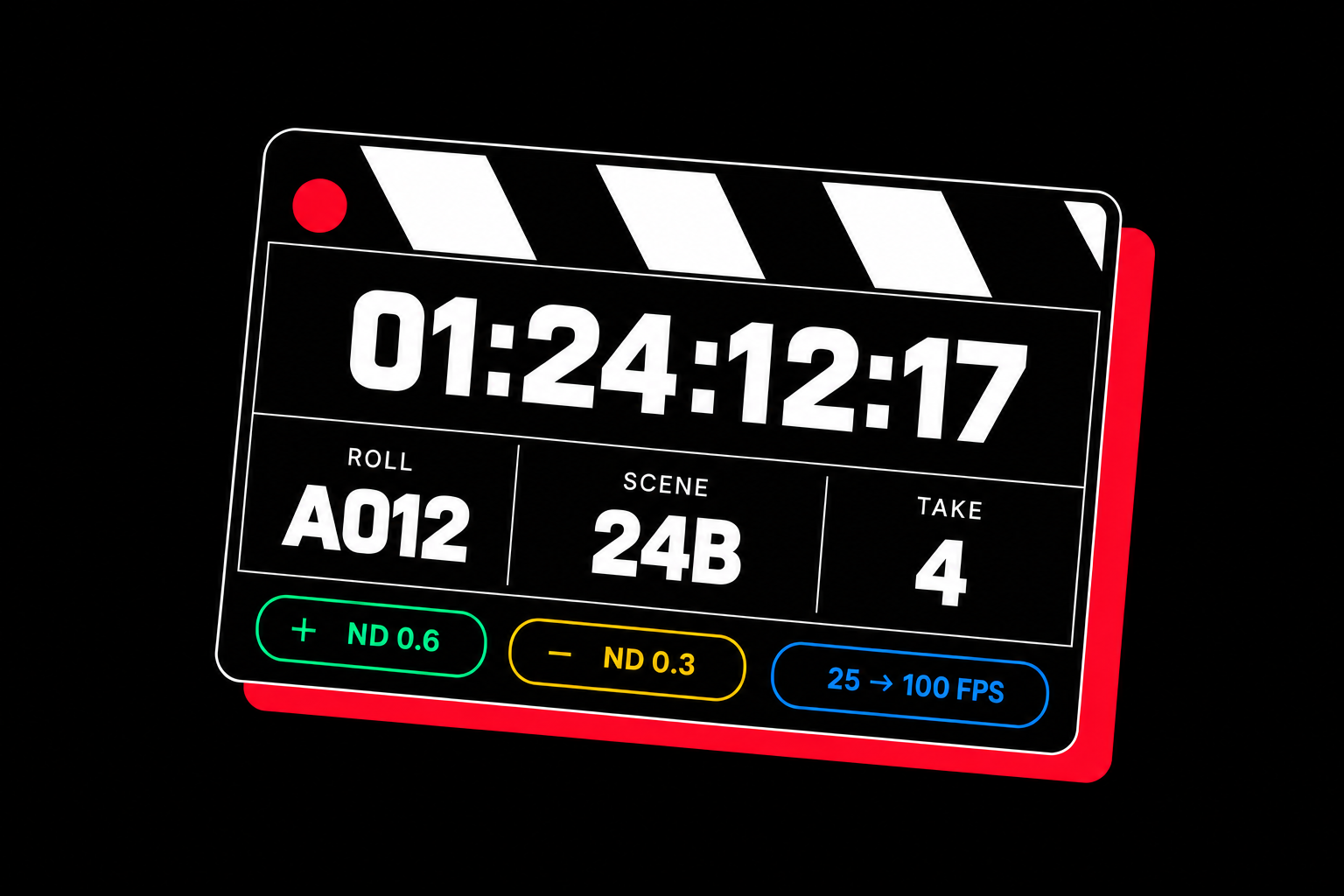
A production-ready slate and shot log built around the way camera crews actually work.
Independent project by György Lencz · Support its development ↗
Builds are shown here as they move from feedback to testing. Build 3 is now available in the public beta for both iPhone and iPad.
Active Slate, faster clap response and a clearer two-layout experience.
Explore the slate, edit a scene, add tags and create a demo shot log—without saving any project data.
The iPad app detects your physical clapper sticks. The web demo uses PRESS CLAP to simulate the real clap.
Use the + button to attach filters and custom tags to the next clap.
A007_C0006 · SCENE 44A
Interactive web demo — no project data is saved.
Try the slate above. Each clap creates a take with timecode and active metadata. False Take and Undo behave like the iPad app.
iClapper listens for the physical clapper stick, then freezes the accepted timecode and records the take.
Camera, lens, focal length, exposure settings and filters stay attached to the take where they changed.
Every clap becomes a structured entry ready for review and future CSV or landscape PDF export.
LTC carries timecode as an audio signal. iClapper’s LTC workflow reads that reference through a compatible audio input, shows the decoded timecode and lets you jam its internal clock from the incoming signal.
Connect your LTC source through an audio interface or adapter that provides a compatible audio input. For the stereo workflow, route LTC to channel 2 (right) and the reference microphone to channel 1 (left).
LTC Diagnostics shows the input device, audio format, RMS and peak levels, decoded timecode and lock status. Check for a stable LTC lock and avoid clipping before jamming.
Once locked, use JAM FROM LTC to set the internal free-running timecode. Re-jam from the reference when needed. After a successful jam, the clock can continue running when the LTC input is disconnected.
Hardware compatibility and timing depend on the device, audio interface and signal path. Validate your setup against the production reference and re-jam as needed. The browser simulator does not decode LTC; available controls depend on the installed app build.
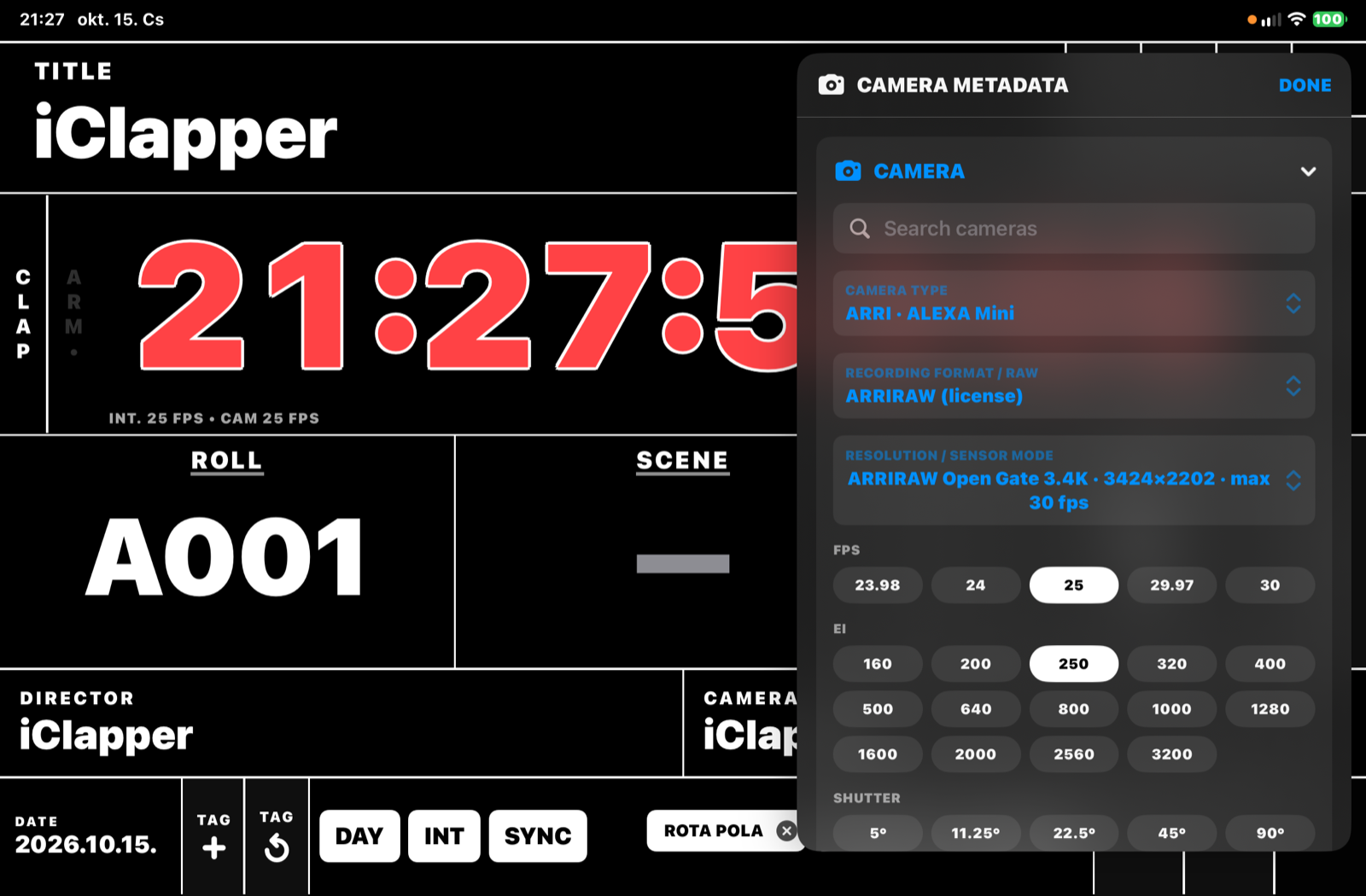
Try iClapper in TestFlightChoose a real camera profile, recording format and resolution; available FPS values follow the selected mode.
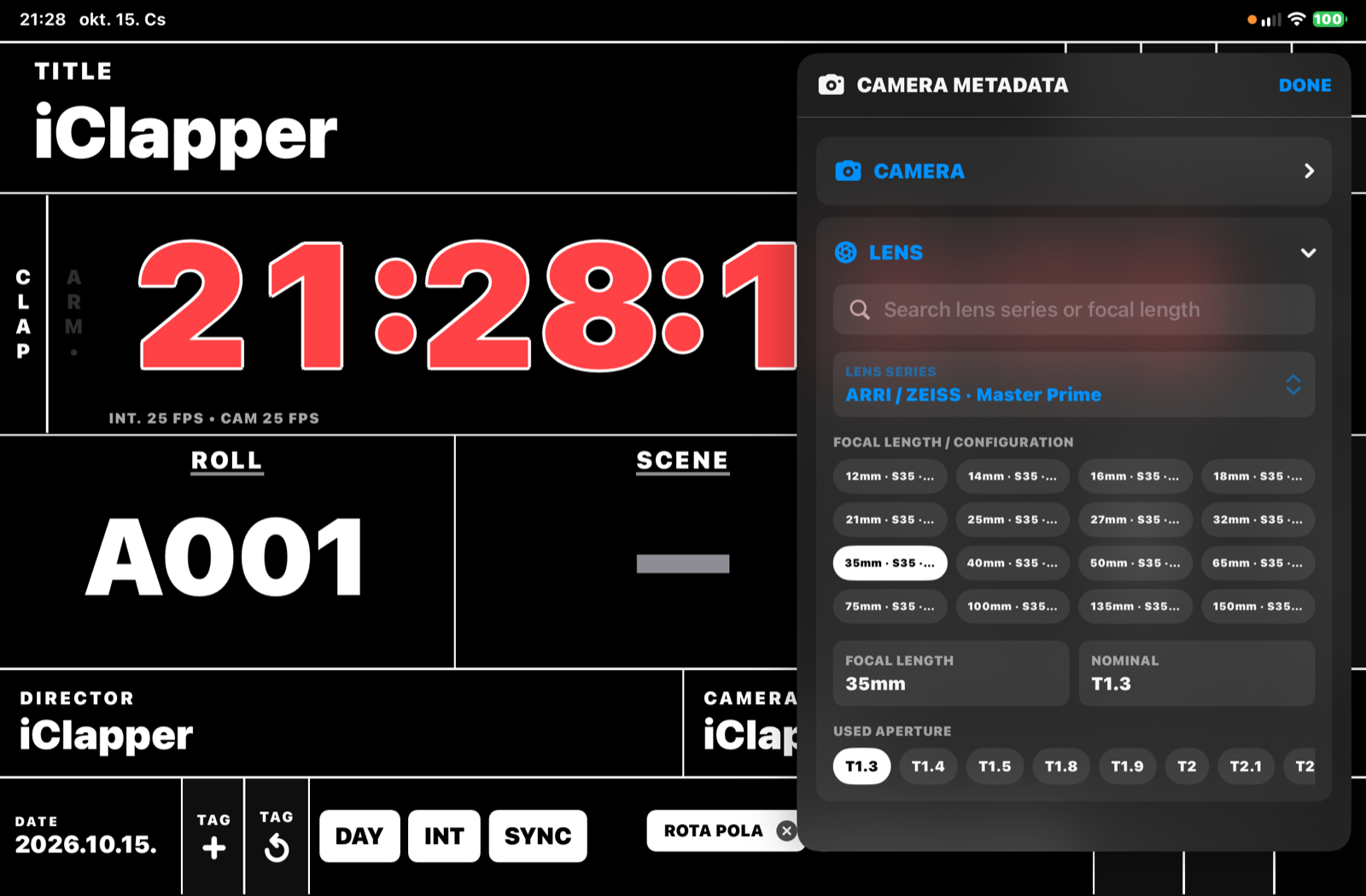
Select the lens series, exact focal length and used aperture without typing technical data on set.
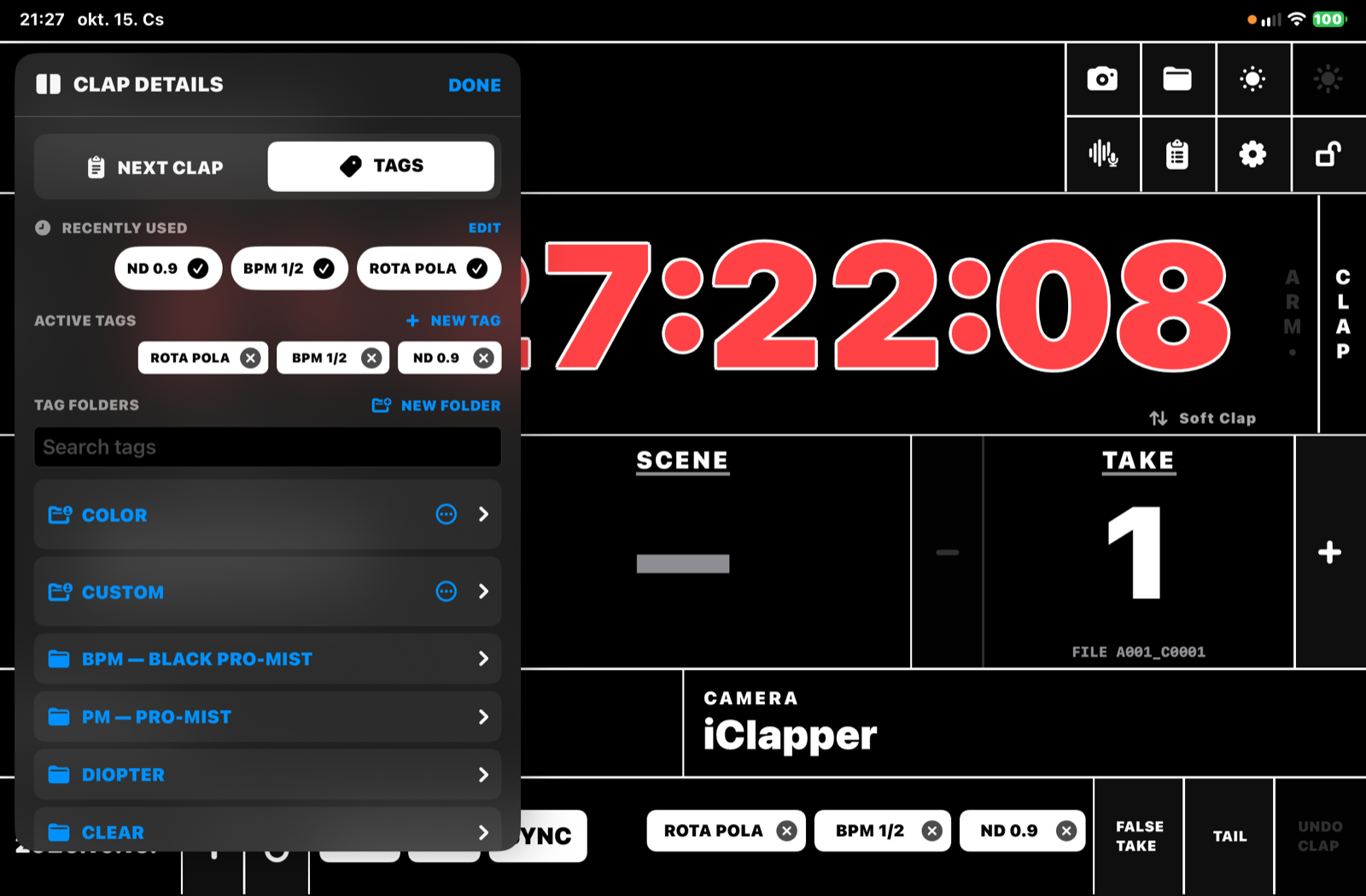
Use recent choices, custom tags and practical filter folders, then attach only what belongs to the next clap.
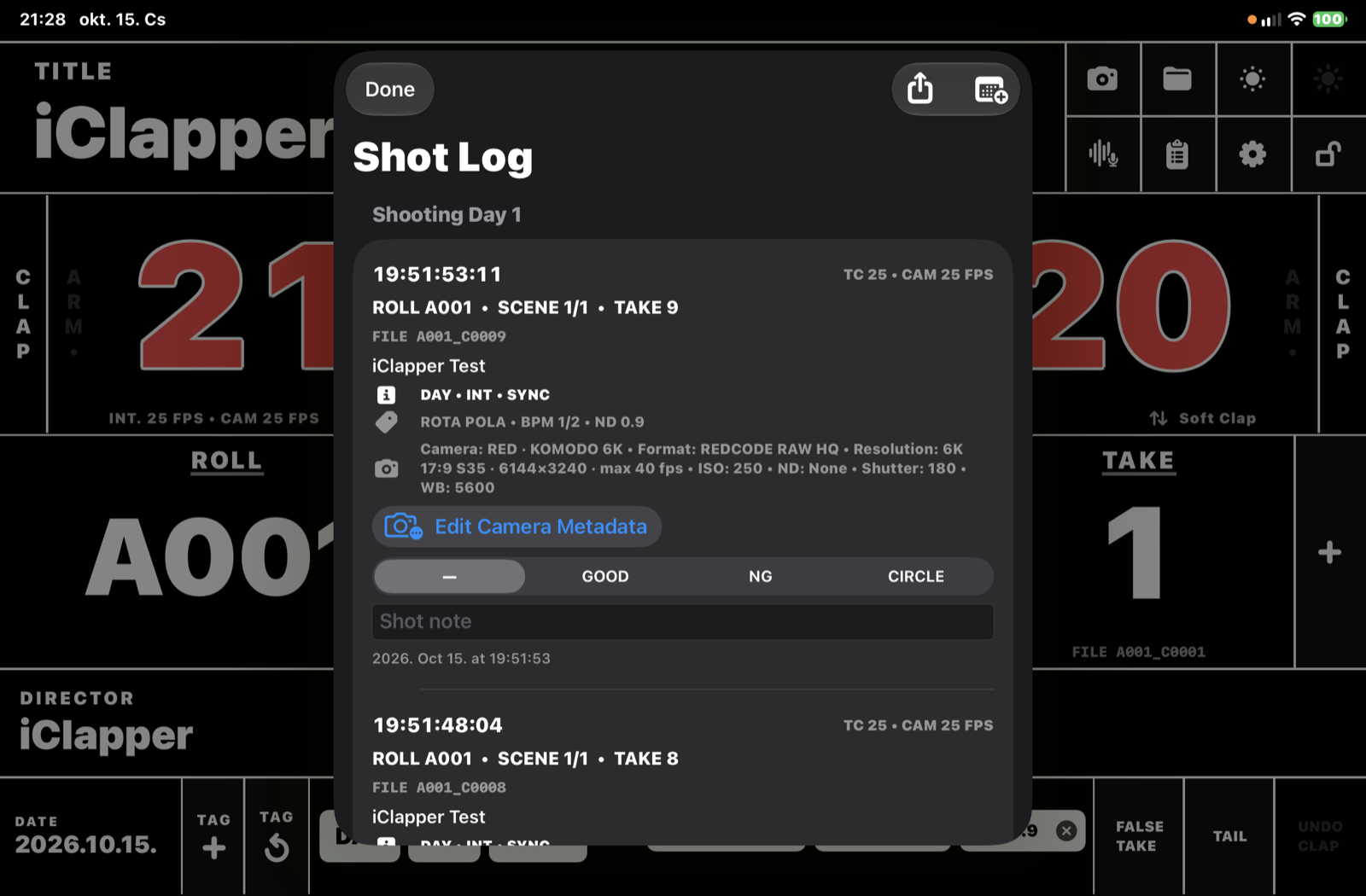
Review timecode, slate data, camera metadata and notes; mark each result as Good, NG or Circle.
Follow a large 3–2–1 countdown through four normal, three quiet, and three very quiet claps. Sound and motion tune all three detection modes automatically.
Every clap, false take, and tail slate records its shooting day, slate data, camera metadata, rating, and notes. Start a new day beside Export or filter with the wheel selector.
See filters, scene, roll, camera settings, and frame-rate changes between consecutive takes—with the same color coding in preview and PDF.
A practical 4×5.65 library covering ND, diffusion, color, streak, star, polarizer, diopter, optical filters, and custom folders.
Keep slate data and logs separated by production, with full project backup and import.
Store camera brand or type, lens, ISO, internal ND, shutter, white balance, and notes. Camera FPS stays synchronized with the timecode panel.
Mark endboards while the app keeps the display locked in landscape as the physical slate is turned upside down.
Choose Classic or Slate Only. The focused layouts keep the slate readable while preserving the controls needed on set.
A purpose-built iPad case is on the roadmap, designed to mount a physical clapper stick while iClapper replaces the traditional slate board.
The whole screen becomes a clear, production-ready slate. Choose a function below to see exactly where it lives.
Search the library, star useful tags or subfolders, and reopen recent choices quickly. Favorites keeps individual tags grouped under their original folders; Recently Used remembers the latest ten and includes a reset.
Every clap stores a full snapshot and its shooting day. Filter one day or review them all; change tracking restarts cleanly at each new shooting day.
iClapper replaces the slate board—not the clapper stick. Prepare the shot, arm detection, clap with the physical stick, and let the app track every take, camera file, filter, and change.
Create a project and enter the shooting day, title, roll, scene, take, synchronized frame rates, crew details, camera metadata, and production tags.
Tap the timecode when the slate operator is ready. Choose a 10, 15, or 20-second window; swipe vertically on the timecode to change clap mode.
Sound and iPad motion must agree. The accepted clap freezes timecode and creates the shot-log entry.
Take and camera file numbers advance automatically. FALSE TAKE advances only the camera file.
Filter one shooting day or export them all as CSV or color-coded landscape PDF. Multiple days and page breaks remain clearly separated.
Built independently in Budapest by György Lencz and shaped through real on-set testing. Your support funds development, timecode hardware and future clapper-case prototypes.
Use iClapper on your iPhone or iPad and help improve it for camera crews. Follow the steps below, then join directly through TestFlight.
Get Apple’s free TestFlight app on your iPhone or iPad.
Tap Join the public beta on that device and follow the invitation in TestFlight. No application form or invitation email needed.
Tap Install next to iClapper in TestFlight, then open the app and explore the slate.
Open iClapper’s page in TestFlight and choose Send Beta Feedback. Include your device, what happened and what you expected.
What to try: slate readability, scene and take editing, camera file numbering, metadata, filters, tags and the shot log.
Beta builds are work in progress. Start with a test project before using iClapper on a shoot.
If TestFlight says the beta is full or unavailable, please try again later. Need help? support@iclapper.app · Privacy policy